

The project structure of a SharePoint Framework (SPFx) project is designed to provide a consistent and uncluttered way to organize your code and files. Below is a standard project structure, with some examples of the main folders and files you might see in an SPFx project:
.vscode-folder
The default folder created by Visual Studio. These files contain the debugging and job configurations. This folder contains three files as below:
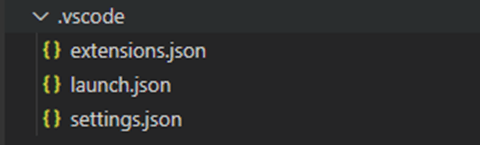
- extensions.js: This file does not relate to SPFx. It only indicates the list of extensions that you have installed in your VS code.
- launch.json: This file contains the workbench configurations. We can define the location for local and SharePoint-hosted workbench. But the SPFx workbench has been deprecated since version 1.12.1.
- settings.json: settings.json is not related to SPFx and this file defines the user preferences such as spaces, font size of code, etc. You can ignore this file as it is not important.
Configuration directory
This folder contains a set of JSON files that help us define the configurations for our SPFx solution. These configurations include Web Part access points, workbench home page, etc. The configuration folder contains all the JSON files as below
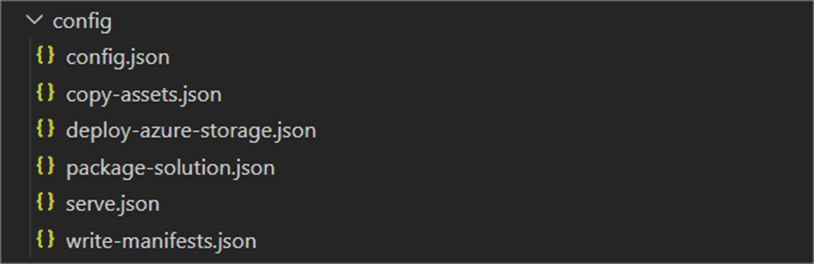
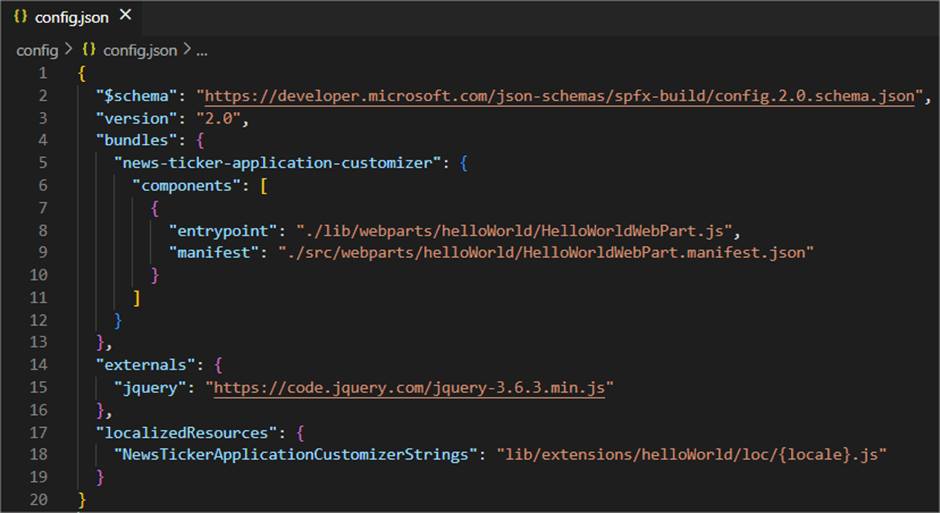
- config.json: This is one of the main files in the SPFx solution. It contains a list of all the web parts that are present in your solution. Oa:
- Starting point for each webpart: so that the webpart knows exactly where to start
- Location of the manifest file for each webpart: Manifest file contains all the information about the webparts such as webpart ID, name, description, etc.
- Location of localized resources for each Web Part: Localized resources serve your Web Part in different languages.
- You can also define the external JS files if you want them to be loaded with your solution. For example, you can place the path of jQuery files as shown below under externals as shown in the image below:
- copy-assets.json: If you want to host your webpart using CDN, you can use this file. Here we define the CDN path of the js files that are generated when we run the bundle command. You can then go to this path from your solution and copy the .js files to CDN.
- deploy-azure-storage.json: This is the file that contains your Azure Storage account information. The SPFx web parts are primarily deployed on one of the CDN (Content Delivery Network) options below
- Azure CDN
- Office 365 Public CDN
- SharePoint library in your tenant
- When you need to deploy your webpart to Azure CDN, you need to configure the Azure storage account details in this JSON file.
- package-solution.json: This file contains details about the location for the package that is generated when we build the solution. This file also contains the configurations such as the name of the web part, the description, the version features, the name of the zipped file, etc.
- serve.json: This file contains the URL for loading the first page when you run the Web Part using the local workbench.
- write-manifests.json: You can specify the CDN path if you have decided to host the SPFx app’s external CDN other than Office 365 public CDN.
Node_modules
Includes JavaScript modules downloaded by Node.js
When we run the npm installation, all the required external modules will be downloaded and stored in the node_modules folder. This folder is only needed for building purposes. We don’t check this folder into the repository because it’s not a custom folder. When we clone the repository and run the npm install command, this directory will be created with all the required modules.
All the required external modules that we used in our solution are defined in the file package.json.
npm install
src
This is the actual source folder where our webparts and extension code goes. Under the src folder, you'll find the webpart folder for webparts and the extension folder for extensions.
- loc: This directory contains one interface file and one or more language localization files such as en-us.js, nl-NL.js, etc. SPFx provides the ability to load the webpart in different languages. You can define the language sequences in these files.
- webpart.manifest.json: Each webpart has its own manifest file. It contains the configuration related to the name of the web part, the description of the web part, the group name, the icon of the web part, etc.
- webpart.module.scss: This is a styling file for your webpart. It's called SCSS (Sassy CSS) which is an advanced version of CSS.
- webpart.ts: This file defines the starting point for the webpart. This file has one webpart class that extends BaseClientSideWebPart. BaseClientSideWebPart takes care of the basic operation of the webpart. This file also contains the configurations of the Web Part's properties pane.
- Components folder: This folder is only available if you are using React as a framework. This folder contains the status and props interface files, the .scss file, and an important file known as webpart.tsx.
- webpart.tsx: This file mainly contains the HTML for your webpart. This also includes the function call along with the react lifecycle. With the help of this file, you can update the status of the webpart. This file is only available if you use React in your webpart.
Other files
- .gitignore: This file contains all the files that should be ignored by git. That means when you check in the code, the files mentioned in this file will be ignored and not uploaded to the repository.
- .yo-rc.json: When we run the Yeoman generator on a brand new map, the project and components are created. This file indicates the Yeoman version and the environment we used to create the solution. This version is also known as the SPFx version. If you run it again, it detects (due to the presence of the .yo-rc) file and skips all general questions about the project and goes directly to the questions for creating a new component.
- gulpfile.js: The gulp jobs that we use to run the application are defined in this file
- package-lock.json: It stores an exact dependency tree with versions instead of using starred version control like package.json itself (e.g. 1.0.*). This means that you can guarantee the dependencies for other developers or prod releases, etc. It also has a mechanism to lock the tree structure, but will generally be regenerated if package.json changes.
- package.json: This file contains several metadata that are relevant to the project. This file is used to provide information to npm that allows it to identify the project and handle the project's dependencies.
It can also include other metadata such as a project description, the version of the project in a particular distribution, licensing information, even configuration data – all of which can be vital for both npm and the package's end-users. - tsconfig.json: The presence of the tsconfig.json file in a folder indicates that the folder is the root of a TypeScript project. The file tsconfig.json specifies the root files and the compiler options needed to compile the project.
- eslint.json: ESLint checks TypeScript code for readability, maintainability, and functionality errors. We can define the rules for which the code checks for build warnings and errors.
 Nico De Cleyre